

Deployment Guide
This guide describes how to add the Annoto App to your Instructure Canvas environment. This guide is intended for IT and administrators.
This is the recomended deployment method which uses LTI 1.3
The Annoto App for Canvas is implemented as a set of LTI external tools.
Prerequisites
A Canvas Administrator account with access to manage Canvas Developer Keys.
A URL to the JSON Configuration provided by Annoto
Example:
https://auth.eu.annoto.net/lti/register/{host_id}/canvas
Redirct URIs provided by Annoto
Example:
https://auth.eu.annoto.net/hosts/{host_id}/lti/apphttps://auth.eu.annoto.net/hosts/{host_id}/lti/embed/selecthttps://auth.eu.annoto.net/hosts/{host_id}/lti/embed/launchhttps://auth.eu.annoto.net/hosts/{host_id}/lti/dashboard/launch
To obtain the JSON configuration link and Redirct URIs please contact us at support@annoto.net
Step 1: Create LTI Developer Key
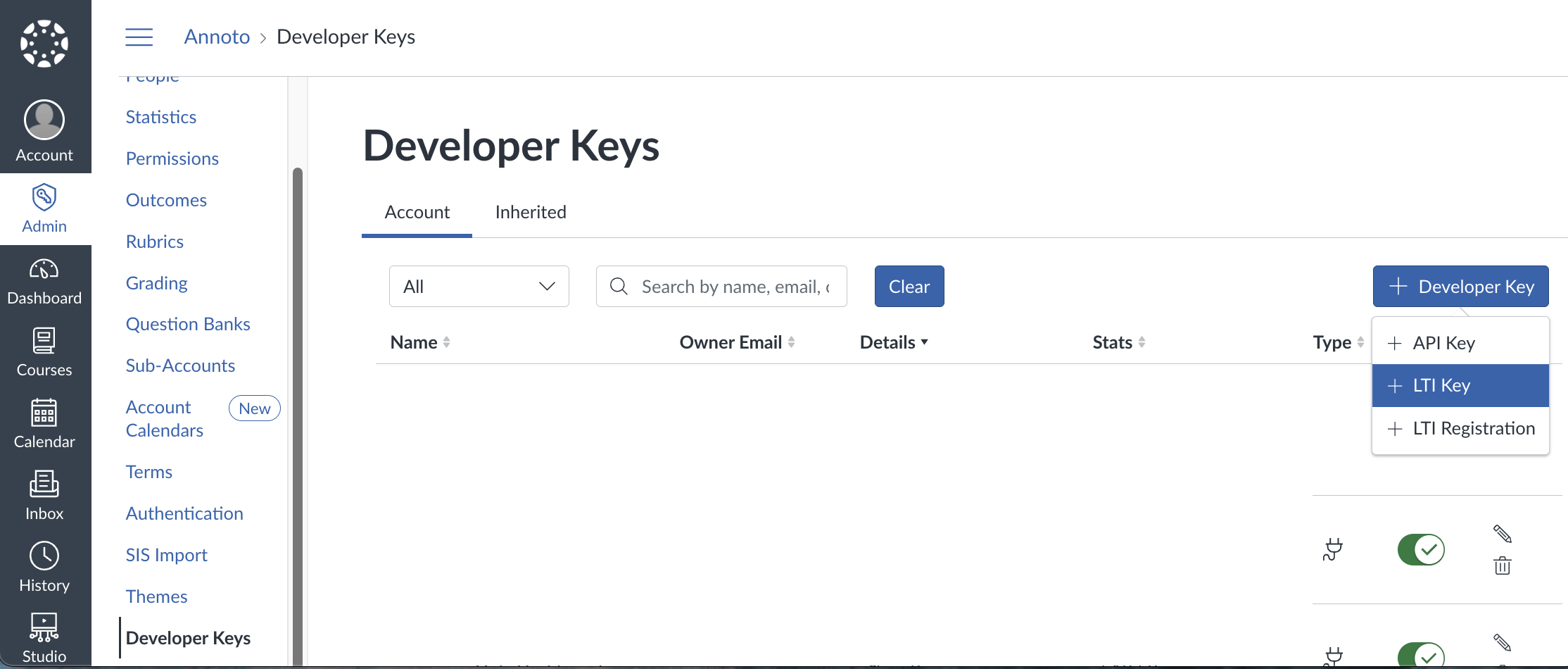
Navigate to the Admin tab.
Navigate the Developer Keys
Click on "+ Developer Key" Button
Click "+ LTI Key"
Step 2: Configure the LTI Developer Key
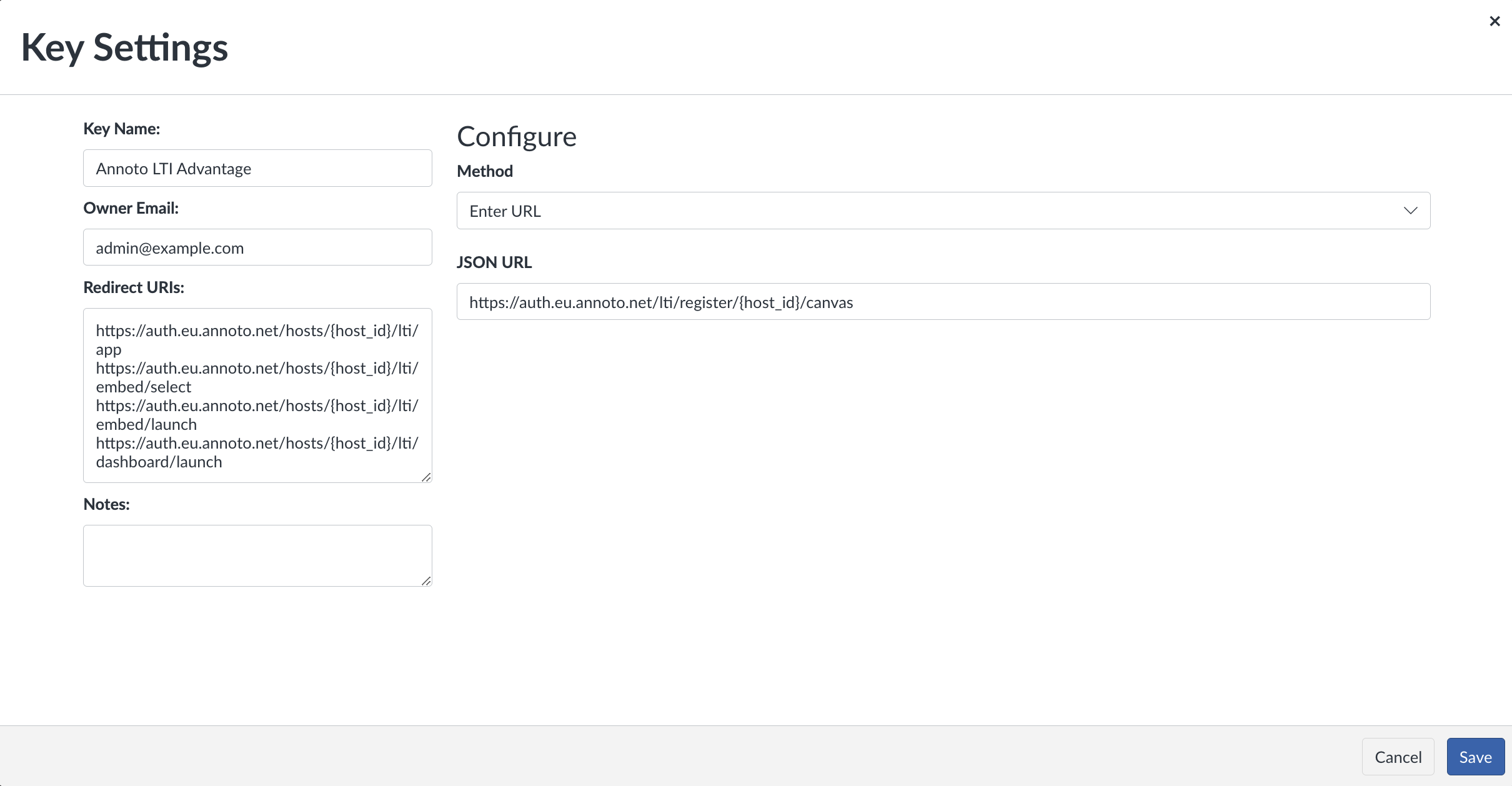
Change the Method to "Enter URL"
Paste the "JSON URL" provided by Annoto
Paste the "Redirect URIs" provided by Annoto
Set Key Name to "Annoto LTI Advantage"
Set Owner email (optional)
Click on "Save"
Step 3: Enable the LTI Developer Key
The newely created Key would be listed in your Account and have it's "State" set to off:

Click on the Toggle to enable the Key:

Step 4: Share the Client ID with Annoto
The Client ID of the LTI Developer Key is available in "Details" column:

Please copy the key and share it with Annoto team to finalize the deployment.
Do not click on the "Show Key", it will show a different private key, not required by Annoto. The Client ID is the visible ID in the Developers Keys table.
Support
If you need any additional information or have any questions, please contact us at Annoto Support