

Embed Annoto media
Adding a video with Annoto
Adding a video with Annoto in a separate window
Under Course Content page:
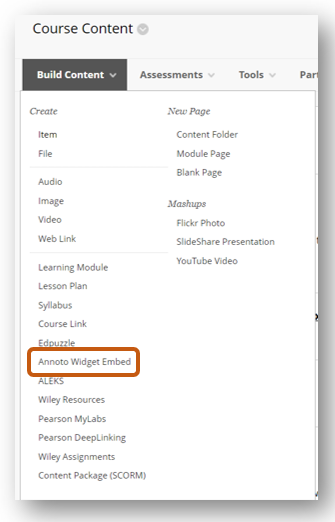
Go to Build Content
Choose Embed Annoto Media
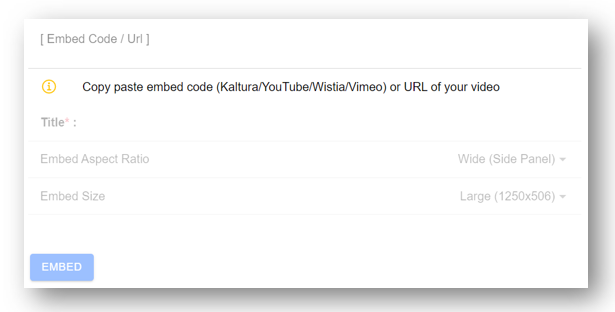
3. In the Annoto Widget Embed window, add the URL (in [Embed Code\ URL]):
4. Add the video URL and the video title.
If you want – you can choose the embed aspect ratio and the embed size: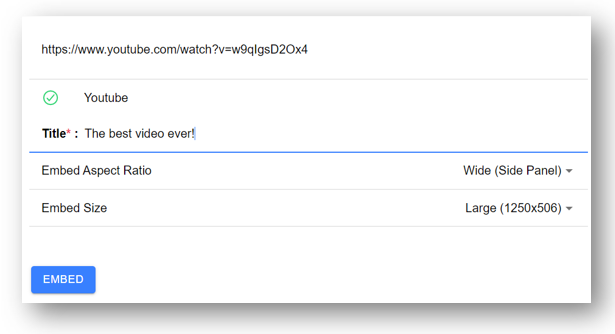
5. Click Embed
Annoto will be automatically added to the video.
Adding a video with Annoto in a Content Folder
Under Course Content page:
Go to Build Content
Choose Content Folder
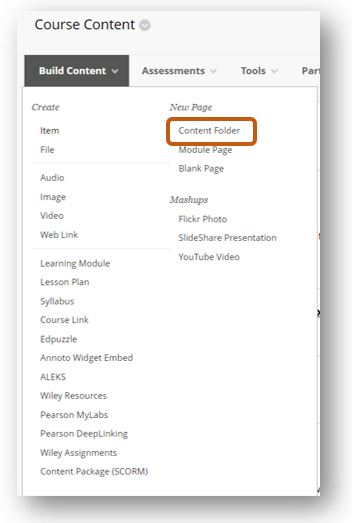
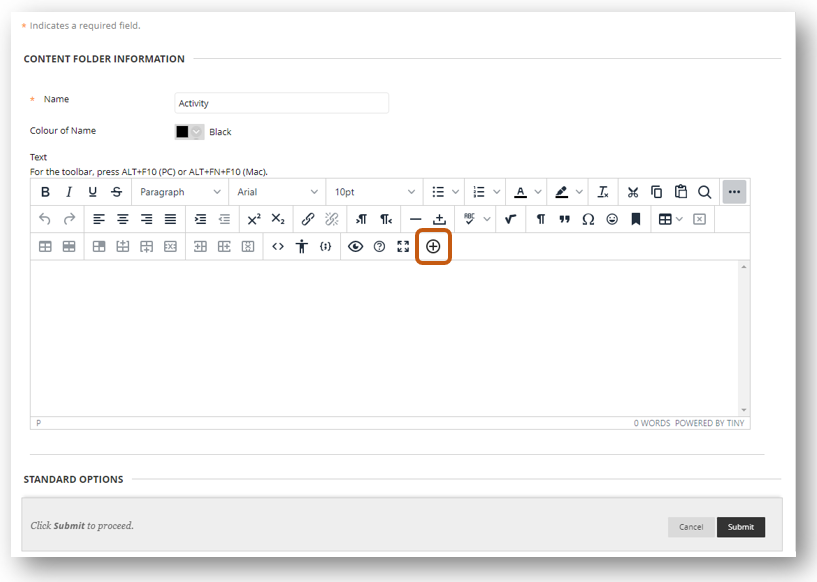
3. In the Content Folder window, add the name of the activity
4. In the Text window, click on the Plus icon (called: add content):
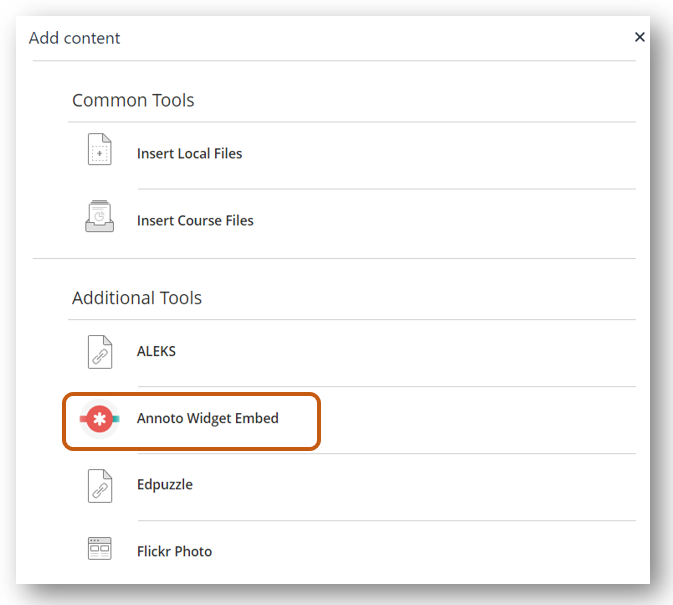
5. In Add Content window, choose Annoto Widget Embed
6. In the Annoto Widget Embed window, add the URL (in [Embed Code\ URL]):
4. Add the video URL and the video title.
If you want – you can choose the embed aspect ratio and the embed size:
5. Click Embed
Annoto will be automatically added to the video.
6. Submit the activity